Showing posts with label Microsoft outlook problems. Show all posts

Wednesday, March 14, 2012

Microsoft Outlook Won't Open

outlook error
You have Microsoft Outlook configured with your web mail (Yahoo, Gmail, Comcast), but due to some problems which might be a Microsoft Outlook problem your outlook is not working. There can be various reasons for Microsoft Outlook is not responding or opening, you can access it by executing a few simple steps. A lagging or inaccessible Outlook is a typical problem for most users. Usually the inaccessibility of Outlook stems from a corrupt or damaged application file; certain files prevent Outlook from opening. Fortunately, fix an Microsoft outlook problems doesn't require much work or knowledge.

End Process

Step1: Press the Shift, Ctrl and Esc keys to open the Windows Task Manager.

Step2: After opening the windows task manager, open the "Processes" tab. Rummage the processes list to see if the Microsoft Outlook process is running. If it is, click the process.

Delete OUTCMD.DAT

Step1: press the F key plus the Windows key to open the Windows search box.

Step2: In search box, type "OUTCMD.DAT" and press enter.

Step3: Right click the "OUTCMD.DAT" file. Click "Delete." Open and empty the Recycle Bin. Reboot your computer.
If you lost your Microsoft outlook data after system crash and you want to recover this data  then follow this article which will help you to recover your data. How to Recover Microsoft Outlook After a Crash

Friday, February 3, 2012

Configure TDS Email Accounts in Microsoft Outlook setting


The TDS(Telephone & Data Systems  Inc.) email account is provided to all paying accountants with the Telephone & Data Systems Inc. you can configure your TDS email account in all email programs like  Outlook, Windows Mail, Outlook Express and Apple Mail 3.0.After configure, you will be able to access your TDS email messages with Microsoft outlook support.

Step1: Click the "Start" button > click "All Programs." > Click "Microsoft Outlook" under "Microsoft Office." >." Click the "Tools" tab > Click "Account Settings" >then under the "Email" tab, click "New." For Microsoft Outlook 2010, click the "File" tab > then "Add Account." Click the box that says, "Manually Configure Server Settings or Additional Server Types" and then click "Next."

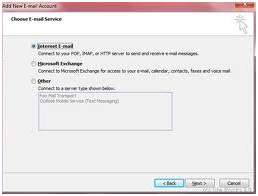
tds email setupStep2: Click the “Internet Email Service" option” option from email service > click "Next." >Type in all your user information and set "Account Type" as "POP3."> In the "Incoming Mail Server" field, type "pop.gmail.com." and in the "Outgoing Mail Server" field, input "smtp.gmail.com." Then click "More Settings" and then "Outgoing Server."

Step3: Click the box "My Outgoing Server SMTP Requires Authentication." Under the "Advance" tab, check the box that states, "This Server Requires An Encrypted Connection (SSL)."

Step4: Input 587 in the "Incoming Server (POP3)" box, and under that box, click the drop-down box to select "TLS." Click "OK." Click "Test Account Settings." Once you're done testing your settings to see if it's correct, click the "Next" button and then "Finish."

Thursday, February 2, 2012

Set Up Outlook for BellSouth Email

AT&T’s BellSouth Internet Services provides customers free email accounts. Benefit of BellSouth account is to enable POP3 access in email client programs, such as Outlook 2007. This is helpful because some free email providers charge for POP3 access.


Given steps helps you to create Email account:
Step1: Open Outlook 2007.go to “Tools” and choose “Account Settings.”

Step2: select “New” from the “Email” tab. Then select “Microsoft Exchange, POP3, IMAP, or HTTP” from the “Add NewE-mail Account” dialog box and click “Next.”

Step3: Select the “Manually configure server settings or additional server types” checkbox and hit “Next.”

Step4: Select the “Internet Email” radio button and select “Next.”

Step5: Type your name and your BellSouth email address under the “User Information” section.

Step6: Select “POP3” as your account type under the “Server Information” section and then type “mail.bellsouth.net” (without quotes) in both the “Incoming Mail Server (POP3)” and "Outgoing Mail Server (SMTP)" boxes.

Step7: Enter your full BellSouth email address and password in the “Username” and “Password” fields, respectively, and then check the “Remember Password” checkbox.

Step8: Select “More Settings,” choose the “Outgoing” tab and select the “My outgoing server (SMTP) requires authentication” checkbox.

Step9: Select the “Use same settings as my incoming mail server” radio button, choose “OK,” click “Next” and hit “Finish.”

Note: If you are not able to follow the above steps or getting any problem then you can reach online technical support service desk of V tech-squad at their Toll Free No +1-877-452-9201.

Sunday, January 29, 2012

How to repair PST files in Microsoft Outlook

Personal Storage Table (PST) is a type of file format that is used by Microsoft Outlook for primary email management to store messages, settings and other important data in the Outlook user environment. Sometime PST file would be corrupted that means you can’t open your messages. That time you can repaired PST file and can also use freeware for this work.
Here given methods will help to correct Microsoft outlook problem and will repair your PST files.

Recovered data will be saved to a new PST file (or several *.pst files) created by PST recovery tool. The PST repair tool can save various Microsoft Outlook items as separate files with the .eml, .vcf and .txt extensions. Here is a Six sequential steps that will help you to recover data from a corrupted PST file .
pst file recover
i) Selecting the PST file data from which you want to recovered

In this case, you should mention the path to the .pst file information from which Recovery Toolbox for Outlook should start recovers. In case there is only one Profile created for the current user whose data is stored in one .pst file, the path to this .pst file will automatically be specified in the address bar. 
ii) Scanning and viewing the contents of the selected pst file

In this case, the program asks you the following question: Do you wish to start recovery? Click the ->Yes button to start the recovery process. The program will start reading and identifying data from the selected corrupted *.pst file. The time it takes to recover data directly depends on the size of the file and the performance of your computer. A larger file and lower computer performance increase the time it takes the Outlook repair tool to read and identify data 

iii) Specify the location to save the recovered Microsoft Outlook data
In this case enter the path to save the recovered information to.
 The Microsoft Outlook repair tool gives two   information:
  1. Available free space in  the selected disk (Free disk space)
  2. Required free space for  save information into the disk (Required free disk space)
Free space must be at least twice as large as the size of the source file for you to be able to successfully save information to it. The red color of the required free disk space field means that free space available on the disk is not enough.

iv) Way of selection for saving the recovered Microsoft Outlook data
Here is two ways to save the information and choose the one of them…..
  • as a pst file
  • as separate files (.eml, .vcf and .txt)
Use the first option to use the recovered data in Microsoft Outlook. Use the second option to export data to other programs supporting the standard, such as Outlook Express or Windows Address Book. To save the recovered data as a pst file, select the Save as PST file checkbox. To save data as separate files, select the Save data separately check box.

v) Save the recovered Microsoft Outlook information
After  click on  the Save button, Recovery Toolbox for Outlook will start saving the recovered data. After the program finishes saving the data, it will display detailed data recovery statistics:
  • the path to the source *.pst file (Source PST file)
  • the number of recovered folders (Recovered Folders)
  • the number of recovered items (Recovered Items)
  • the path to the new *.pst file(s) (Saved PST file(s))
Click the Finish button after the PST recovery process is over. 

vi) Try to open  the new  pst file in Microsoft Outlook
When you save  the recovered data as a *.pst file(s) and you need to open the corrupted *.pst file, you should try start Microsoft Outlook and select the Open item in the File menu.
After that you should click the following items in different Microsoft Outlook versions:
  • Outlook Data File - in Microsoft Outlook XP
  • Personal Folders File (.pst) - in Microsoft Outlook 2000
  • Open Special Folder - in earlier versions of Microsoft Outlook
The above steps help you to repair your damaged or lost PST files.If you want recover your password then follow this article.How to Recover PST File Password in Microsoft Outlook.

Sunday, September 25, 2011

Online Microsoft Outlook Support: A Review

The post intends to provide information on online Microsoft Outlook support options, features, and advantages among other things. The information has been compiled from various sources in order to educate customers about their options and is not necessarily biased.

Microsoft Outlook (MS-Outlook) has always been the popular email client among Windows users for emails, contacts, messenger, calendar, reminders, and/or synchronization with iPhone/Blackberry/Gmail etc. among other features. Microsoft has so far launched different versions of MS-Outlook in a continuous effort to enhance users’ experience with the client. MS-Outlook 2010 is the latest version and is another feather in the cap of Microsoft.
The reason to use outlook:
  • Manage multiple e-mail account from one position 
  • You can mange large volume of E-mail
  • Customize common task into single click commands
  • You can make scheduling 
  • Create email message that make attention
  • Connect to your social and business network
  • Ensure that your e-mail arrived at the selected visit groups.
  • Receive voice mail preview in your inbox
  • Live conversation from Outlook
 
However, like all other computer programs, MS-Outlook too is prone to technical glitches that may occur during or after installation or when you try to switch to a later version from the previous version etc. Sometimes Outlook problems go away with a simple tweak. However, sometimes these keep you engaged for hours and waste your precious time that you could have put into finishing your other important tasks.

This necessarily instigates users to look for Microsoft Technical Support services that offer them instant and timely help for all their Outlook problems and save them hours of work and frustration. There are several technical service providers that offer instant and round-the-clock online Microsoft Outlook support for Outlook users.

Their support package might cover all the versions of MS-Outlook; installation, un-installation, or reinstallation of Outlook; updating Outlook; setting up and configuring email account(s); backing up and restoring critical Outlook data; synching Outlook with Smartphones like iPhone or BlackBerry etc. or webmail accounts; repairing and recovering .pst files, troubleshooting and repairing Outlook errors; and migrating from older to the newer version of Outlook among other services.

Microsoft itself provides all of these services to Outlook users. However, those looking for more affordable options can opt for services offered by third party technical support companies. Time and money are two things that users across the world die for. Therefore, contemplate your options well before making a decision. You can have a say of your friends, colleagues, or known that are already subscribed to some third-party technical provider for online Microsoft Outlook support services in your decision.

Most of the technical service providers deliver their services through internet, remote connection, phone or email in order to ensure that users don’t run to and from their place and get their problems resolved immediately and when these arise.

It is recommended that you do a thorough research on online Microsoft Outlook support options and choose what matches best your requirements in terms of price, ease of availability, level of quality etc. You can match the price list of competitors in order to get best money value.