Showing posts with label outlook not working. Show all posts

Friday, June 22, 2012

Outlook Search Feature is Not Working

Outlook Search Feature is Not Working
 Instant Search is a feature which enables an end-user to quickly find, sort and organize email messages. If this feature is not working, either it is not enabled in the program or the directory of Outlook data files is incomplete. Follow the given steps to fix your Microsoft outlook problems.

If your outlook is not working then follow this blog,to fix this problem-Microsoft Outlook Is Not Working.

Step1: Open your Outlook and go to the “Tools” menu.

Step2: Point the cursor on "Instant Search" and click "Search Options". Under Indexing, confirm that the data files you want to include in your search are selected in the "Index messages in these data files" list.

Step3: Verify the indexing is complete or not. Click "Instant Search" on the "Tools" menu and click "Indexing Status" on the menu. Confirm that the dialog box states "0 items remaining". If the answer is different than 0, the indexing is not complete. It must finish before all Outlook folders can be searched.
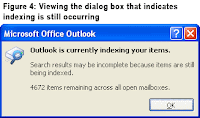
Outlook Search Feature is Not WorkingStep4: Close your Outlook and again restart it. Check the indexing status that is indexing status reports “0 items remaining” and Instant Search does not return the result.

Step5: Check the number of items in the Indexing Status dialog box .If the large number of files on your computer then it will take some times. If the number of items in the dialog box has not increased, close the program. You will need to rebuild the search box.

Step6: From the “Start” menu and click “Control Panel." For windows 7 , click "System and Maintenance" and click "Indexing Options." Click on "Advanced" and click on the "Index Settings" tab. Click "Rebuild." Restart Outlook.

See also: How to Recover a Forgotten Outlook Password
               How to Recover Microsoft Outlook After a Crash

Tuesday, April 3, 2012

Microsoft Outlook Is Not Working

Microsoft Outlook is not working in proper way. Maybe you can't send emails anymore, or you can't open certain folders in Outlook, or you're unable to open Microsoft Outlook itself. Here are some steps which can solve your problem.If you are getting any unknown error like 0X8004060C then follow this article-How to Fix Unknown Error 0x8004060C in Microsoft Outlook.
Microsoft outlook

Step1: Close all programs in your system which is open and restart your computer.This may solve your problem if Outlook is just being a bit finicky and not suffering from any critical issues.

Step2: Check that your anti-virus programs aren't currently scanning your computer. They may have locked you out of Outlook if they found a malicious file in your emails, so let them finish scanning and remove the file.  

Step3: Restore your computer to an earlier date when you were able to open Outlook. Go to the "Start" menu on your desktop and then "Search." In the Search bar, type in "System Restore" and go to that program. Select a date when you able to get into Outlook, and follow the wizard to restore your computer to that earlier date.

Step4: Make sure your computer is connected to the Internet if you're unable to send and receive emails. Check it from control panel and select "Networks and Internet" and then "Network Sharing Center" to see if you are connected. If you are unable to see the network you are supposed to be connected to, go to your modem and unplug both of them for 10 seconds. Plug them back in, and let them reconnect to the Internet. Then restart your computer. May be it will solve your outlook problem.

Step5: Delete all unnecessary emails in your Inbox, Sent folder and Trash folder.

Step6: If you are receiving any of these errors like- The Action Cannot be Completed" or "Your Microsoft Exchange Server is Unavailable" or "Cannot Start Microsoft Office Outlook” then you should take Microsoft outlook support. These messages typically mean your Outlook client computer doesn't have the default gateway configured. Go toward the bottom of the page and select "Fix this for me" to download a wizard that will walk you through solving this problem.
If you want solve sending email problem in outlook then follow my blog-How to troubleshoot sending email problem in outlook
Above all steps are manual process .If you  are getting any problem then you can reach online technical support service desk of V tech-squad at their Toll Free No +1-877-452-9201.